Showing posts with label user. Show all posts

Wednesday, August 1, 2012

HAX manager for android emulator

Intel released a new driver for android emulator so that it makes use of our computers GPU and runs faster 

To enable the driver follow the steps below :


  • open the SDK manager and download the Intel x86 Atom System Image for the platform you are working with (Intel x86 system image is only available for android 4.0.3 and android 2.3.3)
  • download the Intel Hardware Acceleration Execution Manager.
                       

  • after the download and install is complete see the location where the driver is downloaded by hovering  over at Installed text.


  • go to the directory and run the setup file
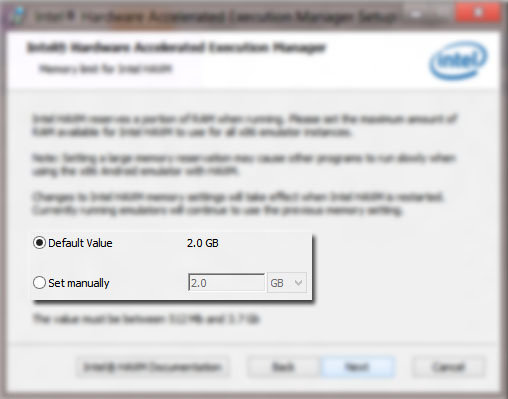
  • install the driver and configure the RAM size according to your system

  • to test that your driver is installed correctly run
  • CMD.exe as Administrator and type  
    sc query intelhaxm


  • open AVD manager
  • create a new avd and Target it at the platform for which you have downloaded the Intel x86 Atom System Image 
  • set the CPU to Intel Atom x86 .
  • enable GPU emulation by clicking on new In the Hardware column and select GPU emulation

  • set it to yes.
  • click on create avd and start the avd just created.
  • you see in the Starting Android Emulator dialog box its written that                            
                        avd runs in fast virt mode


Watch this video tutorial if you face any problem:


Friday, July 20, 2012

How to create a new connection in SQLdeveloper

First of all start your database by going to cmd.exe  and type in
  
 sqlplus

It will ask you for the username and password . Enter any user to connect and enter the password for that user.

After you are connected to the database open SQLdeveloper and click on create new connection .


a dialog box opens.


In the field Connection name enter any desired name, in the field username enter the specific user with which you want to connect and in the next feild enter the password for that user. Also Check save password so that you are not prompted again and again for password.


In the oracle tab set the Role to default and connection type to TNS.


From the list of Network alias select ORCL(The name may vary on different machines)


after that click on Test and You should get Success.


After the Success is printed Click on Connect. And you are done.


if you face any problem please leave a comment.!